Zero Touch Provisioning for Harness.io
Touch Provisioning (ZTP) for Harness.io enables the security check workflows to be executed from an Harness.io pipeline. This guide walks you through the process of setting up ZTP for Harness and every other thing you need to know.
Prerequistes
Before you begin, ensure you have:
- Integrated your SCM (Azure DevOps, BitBucket, GitHub, GitLab) to BoostSecurity.
- Create an Harness.io API key with the following permissions:
- View organizations: core_organization_view
- View pipelines:
core_pipeline_view - Run pipelines:
core_pipeline_execute - View projects:
core_project_view - Create/edit secrets:
core_secret_edit
- Create a Boost pipeline in an Harness project
- Harness pipeline template using cloud compute
- Harness pipeline template using a dedicated K8s cluster
- The organization id, the project id and the pipeline id.
Harness Integration Steps
- Locate the left sidebar and click on the Settings icon and open the Integration tab.
- Navigate to the Available integrations.
- Look for Harness and click the "Install" button.
-
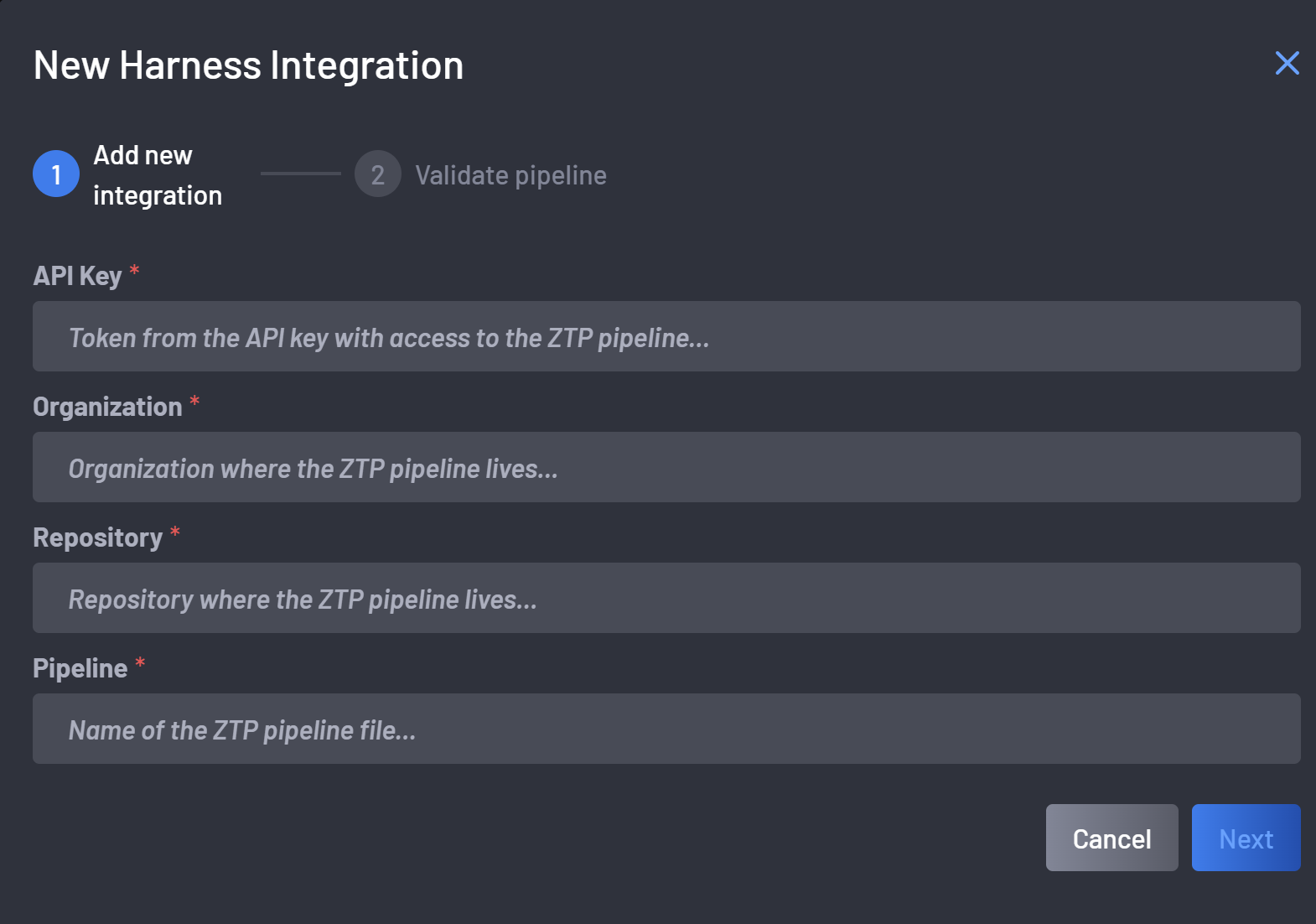
On the Access Token tab, provide the following details:
- The Harness API key
- The Harness organization id
- The Harness project id (repository input field)
- The Harness pipeline id
-
Click next to validate the pipeline. This will provision the
BOOST_API_TOKENin Harness project secrets and try to launch the Boost pipeline you have defined.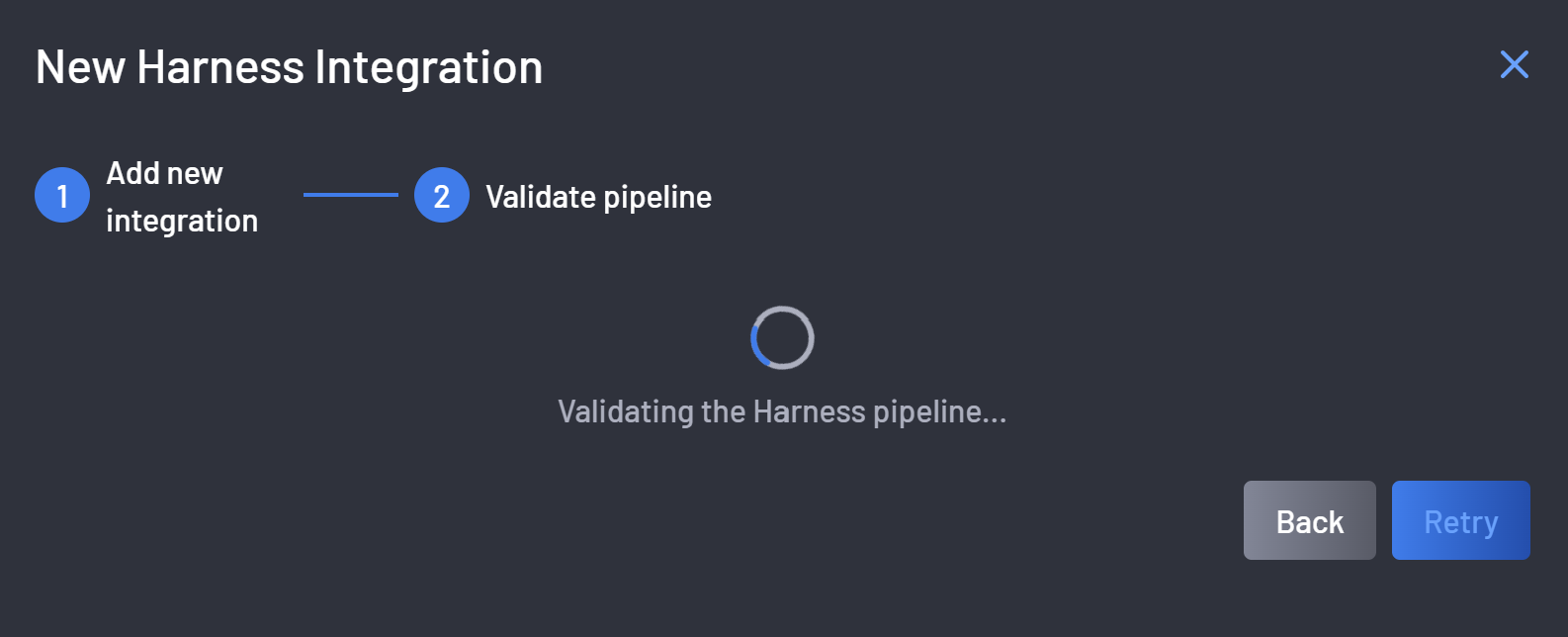
-
Once the pipeline is successfully validated the integration is completed
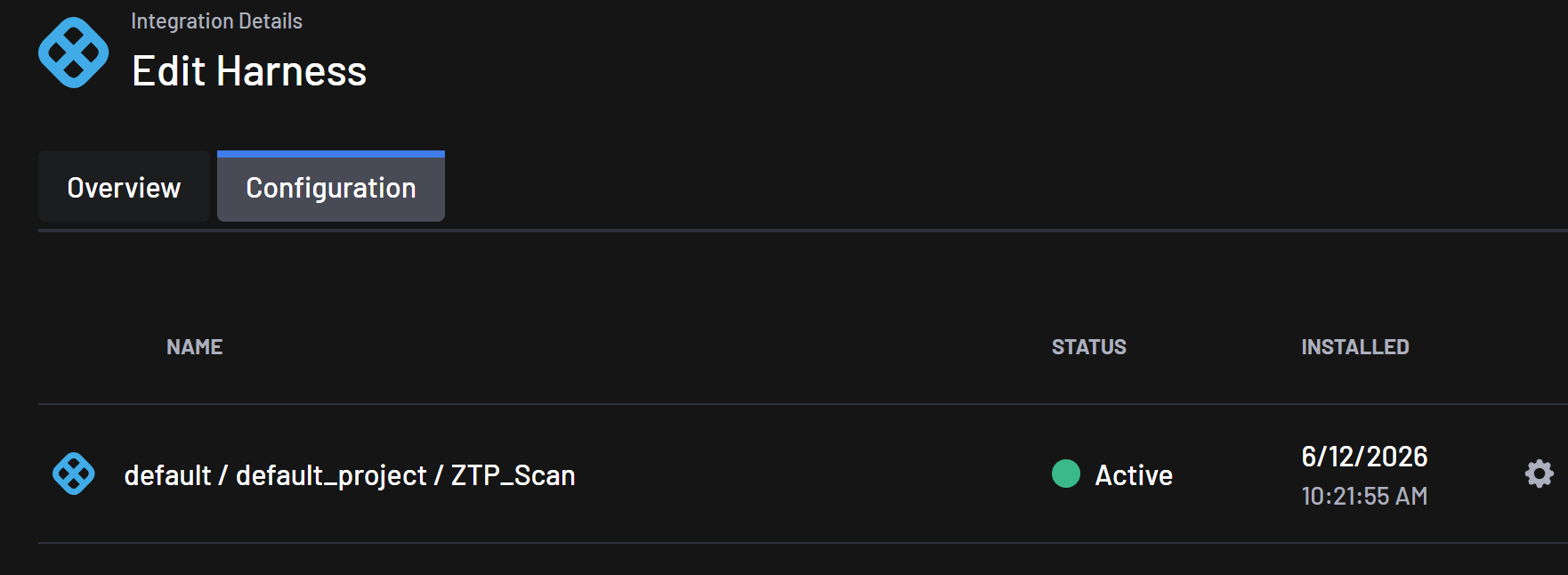
Integration Steps
-
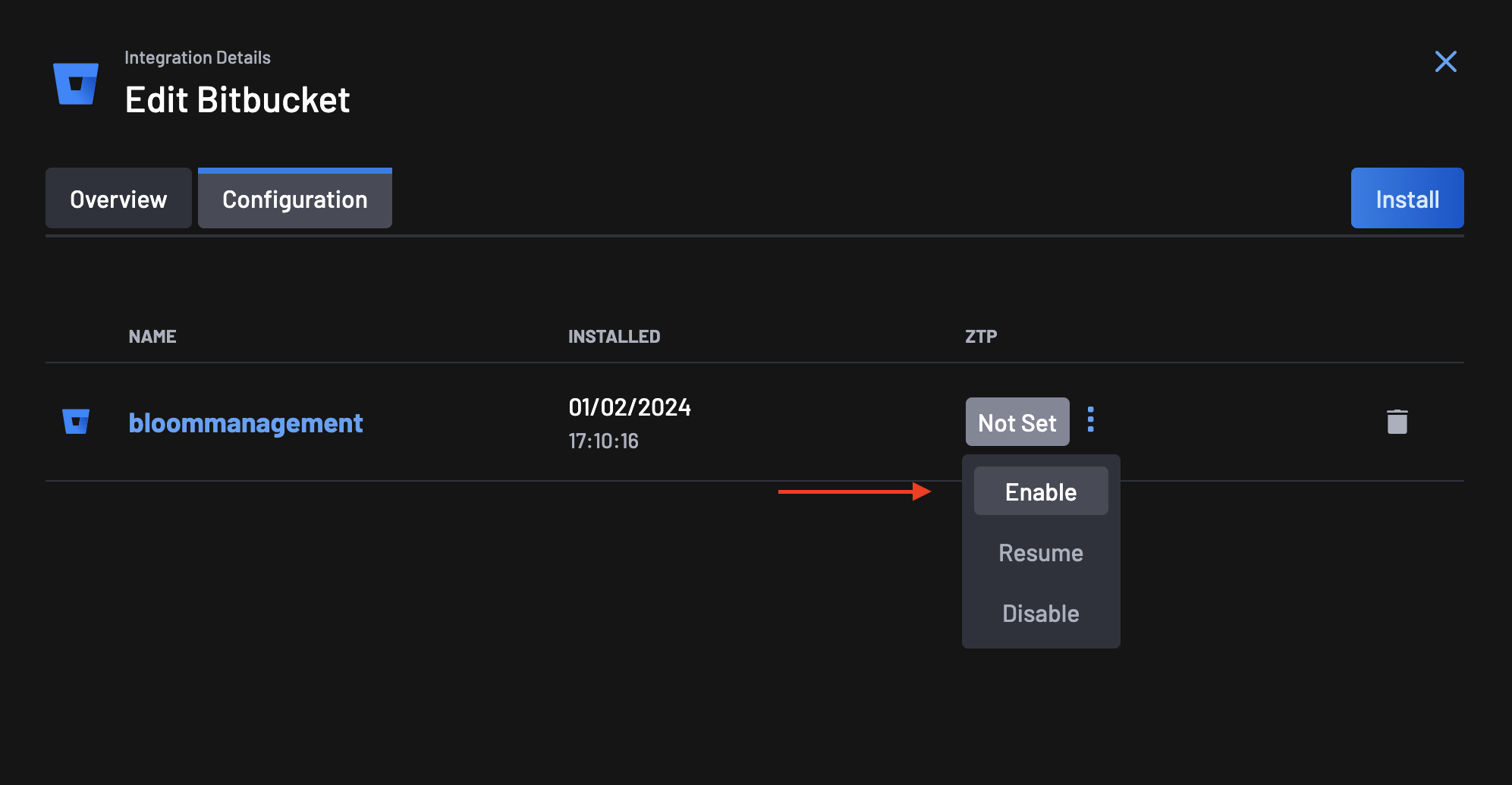
Go to the Integrations page, select your Bitbucket integration, and click on the configuration tab.
-
On the ZTP column, you will notice that the ZTP status is set to Not Set. Click on the actions menu next to the status and select Enable.
-
On the ZTP Wizard, the first step is to give Boost Security permissions for the Zero Touch Flow on your Bitbucket organization.
-
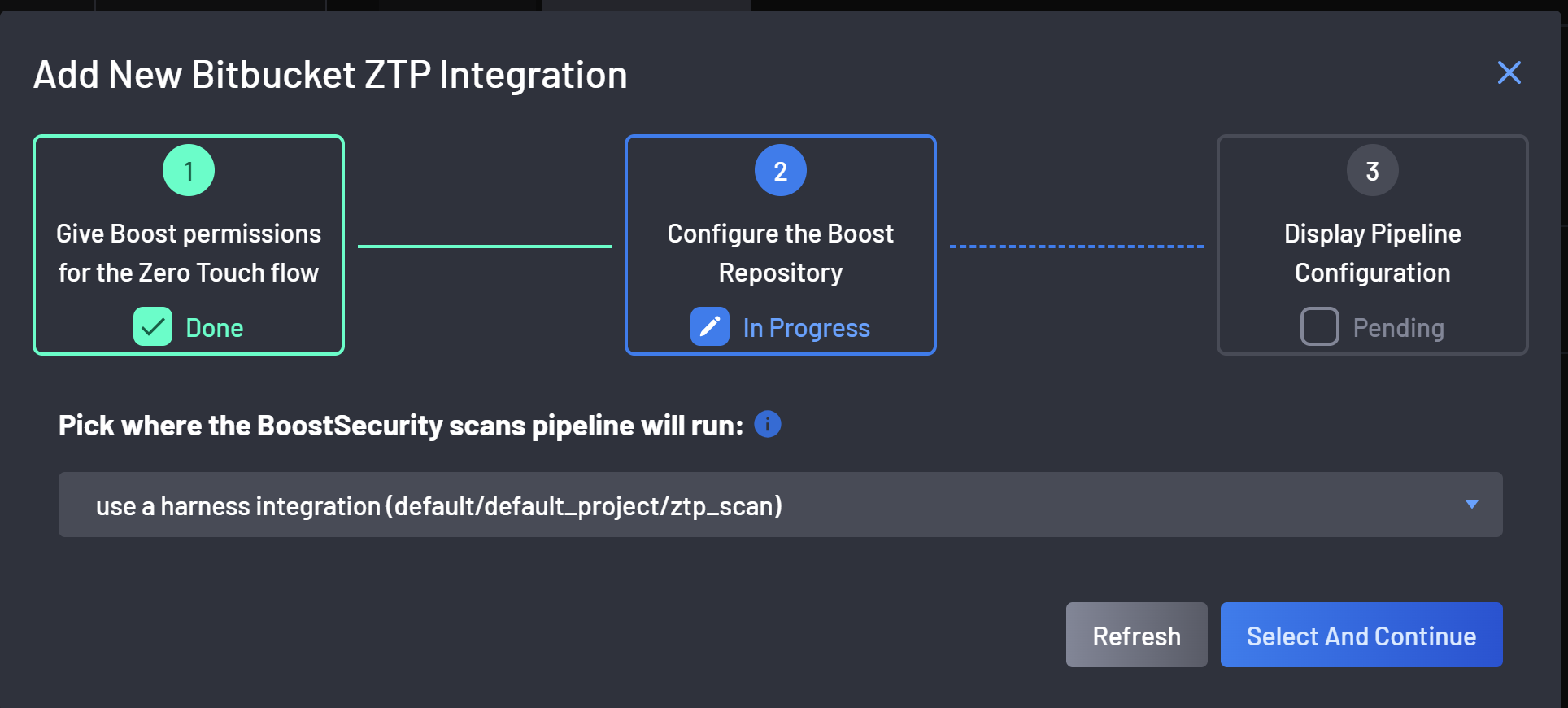
At the second step select the Harness pipeline in which ZTP will run:
-
The pipeline configuration is ready after a successful CI pipeline configuration!
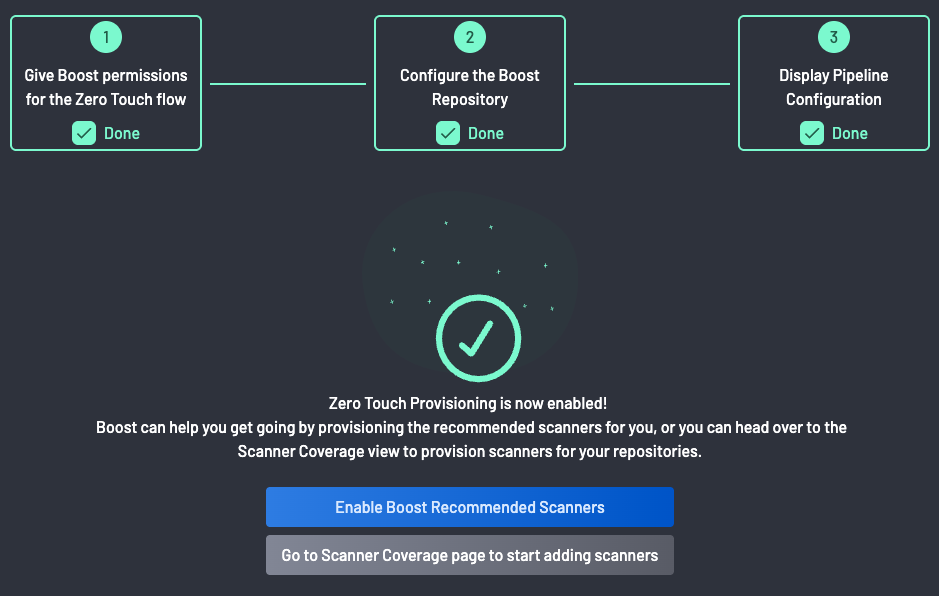
Zero Touch Provisioning is now enabled!!!
Enabling Boost advisor
The Boost advisor lets you fix findings with AI from the Boost Security findings view. For repositories scanned by the Harness ZTP pipeline, Fix with AI triggers a pipeline in your Harness project: the advisor runs on your own Harness compute and opens a pull request with the fix in the target repository.
It works for every SCM your Harness project scans (Azure DevOps, Bitbucket, GitHub and GitLab), including several SCMs behind the same Harness project. Set it up once per Harness project.
-
Create the advisor pipeline in the same Harness organization and project as the Boost scan pipeline, with the identifier
boostsecurity_advisor. The identifier must match exactly; the display name is free. Boost Security never creates or updates this pipeline.Start from this sample. When you create the pipeline in Pipeline Studio, Harness fills in the organization and project identifiers.
- The four
BOOST_<SCM>_TOKENlines can all stay: the advisor reads only the token of the repository's SCM and ignores the others. Harness doesn't fail the run on a secret that doesn't exist, but the value it passes is unpredictable, so the secret must exist for every SCM this project scans. - The
BOOST_LLM_*gateway lines are optional: a project variable that isn't defined is passed as empty, and the advisor ignores it. They are needed only to use an LLM gateway. The OAuth2 client ID and secret are passed only when theBOOST_LLM_OAUTH_TOKEN_URLproject variable is defined: otherwise thecommanddrops them, since a secret that doesn't exist passes an unpredictable value. - The
ubuntu:24.04image and itsapt-getline are currently required. - Boost Security fills the
payloadinput when it triggers the run. You never set it.
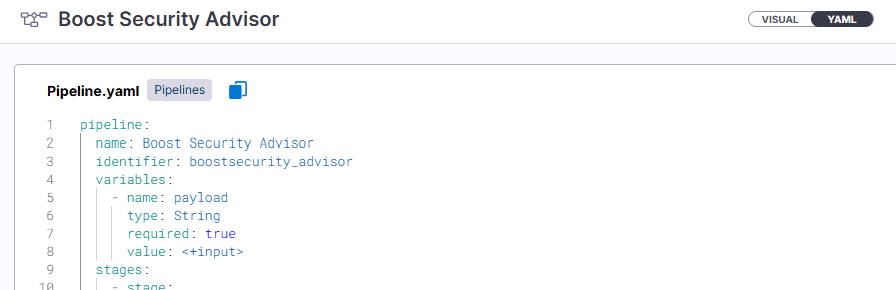
Once created, the pipeline shows its identifier in the YAML view of Pipeline Studio:
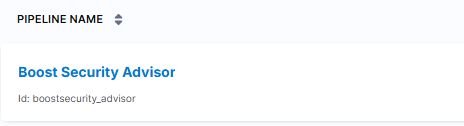
It also shows in the project's list of pipelines:
- The four
-
Create the secrets in the Harness project:
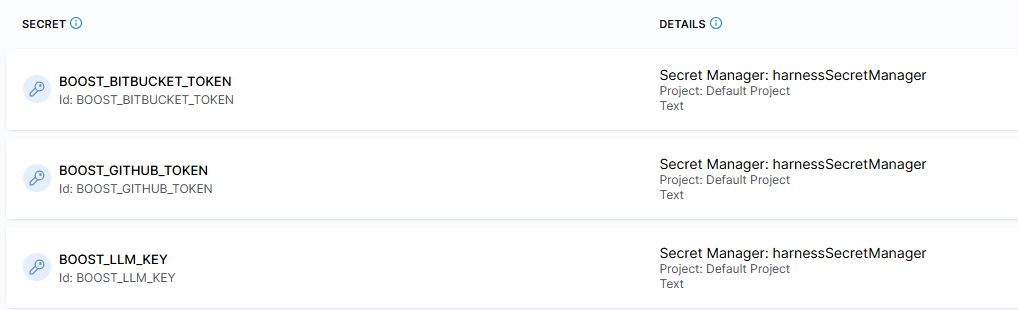
Secret Value BOOST_API_TOKENAlready created by Harness ZTP. The pipeline passes it to the advisor as BOOST_API_KEY.BOOST_GITHUB_TOKEN,BOOST_GITLAB_TOKEN,BOOST_AZURE_DEVOPS_TOKENorBOOST_BITBUCKET_TOKENA token of that SCM with write access, to push a branch and open a pull request. BOOST_LLM_KEYThe API key of your LLM provider, or of your LLM gateway. The SCM token is per SCM provider, not per repository or organization: one
BOOST_<SCM>_TOKENsecret serves every repository of that provider in the Harness project. Create it for every SCM this project scans; the secrets of the other SCMs aren't needed. To create the token itself, follow the Boost advisor guide for your SCM, keeping only its token, since the secret is namedBOOST_<SCM>_TOKENhere instead ofBOOST_SCM_TOKEN: Azure DevOps, Bitbucket, GitHub or GitLab.The pipeline reads each secret by its ID, so give each secret the name in the table above as its ID:
-
Create the
BOOST_LLM_MODELvariable in the Harness project. It is a project variable, not a secret, and holds the name of the LLM model. The sample reads it with<+variable.BOOST_LLM_MODEL>; for an organization- or account-level variable, use<+variable.org.BOOST_LLM_MODEL>or<+variable.account.BOOST_LLM_MODEL>instead.
To have the advisor call the LLM through your own OpenAI-compatible gateway, see How to Use an LLM Gateway with Fix with AI.
Fix with AI Errors
When Fix with AI can't start the advisor pipeline, the Fix With AI dialog says Failed to trigger AI remediation and shows one of these errors:
-
Pipeline not found: "Couldn't start AI remediation. Harness pipeline
boostsecurity_advisornot found; create it in<org>/<project>.", with your Harness organization and project identifiers. The advisor pipeline doesn't exist there, or its identifier doesn't match. Create it as described in step 1.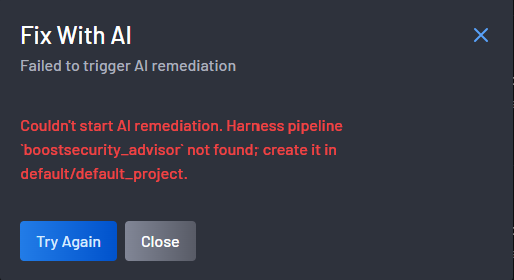
-
Temporarily unavailable: Harness rate-limited the request or had a server error. Retry later.
- Trigger error: Harness refused the run. The error carries Harness's message, which gives the reason.